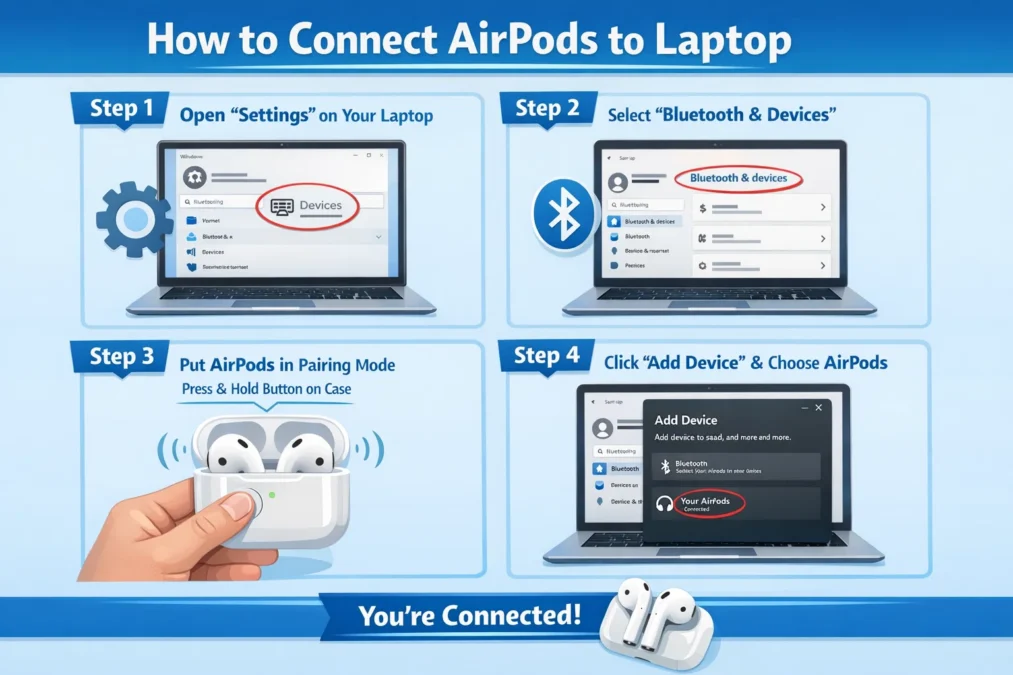
If you’ve ever wondered how to connect AirPods to laptop, you’re not alone. Many people love using Apple AirPods for music, video calls, and online classes but connecting them to a laptop can feel confusing at first.
The good news? It’s actually very simple once you know the steps. In this detailed guide, you’ll learn how to connect AirPods to laptop on both Windows and Mac, fix common problems, and get the best sound experience.
Let’s dive right in!
What Are AirPods and Why Use Them with a Laptop?
Before learning how to connect AirPods to laptop, let’s understand what makes them special.
AirPods are wireless earbuds made by Apple Inc.. They use Bluetooth to connect to devices like phones, tablets, and laptops.
Why People Love Using AirPods with Laptops
- No wires, no mess
- Clear sound quality
- Built-in microphone for calls
- Easy switching between devices
- Comfortable for long use
Whether you’re studying, working, or relaxing, using AirPods with your laptop can make things much easier and more enjoyable.
Basic Requirements Before Connecting AirPods
Before you learn how to connect AirPods to laptop, make sure you have everything ready.
What You Need
- A laptop with Bluetooth
- Charged AirPods
- Charging case
- Updated system software
Quick Tip
If your laptop doesn’t have Bluetooth, you can use a USB Bluetooth adapter. It’s a small device that adds Bluetooth to your laptop.
How to Connect AirPods to Laptop on Mac
If you’re using a MacBook, connecting AirPods is very easy. That’s because Apple devices are designed to work together smoothly.
Steps to Follow
- Turn on your AirPods
- Place them in the case and open the lid
- Press and hold the button on the back of the case
- Wait for the light to blink white
- On your Mac, open Bluetooth settings
- Select your AirPods from the list
- Click “Connect”
That’s it! You’ve successfully learned how to connect AirPods to laptop on a Mac.
Extra Tip
If you’re signed in with the same Apple ID, your AirPods may connect automatically.
How to Connect AirPods to Laptop on Windows
Now let’s talk about Windows laptops. The process is slightly different, but still easy.
Steps to Follow
- Open Bluetooth settings on your laptop
- Turn Bluetooth ON
- Click “Add a device”
- Choose “Bluetooth”
- Open your AirPods case
- Press and hold the setup button
- Select AirPods from the list
- Click “Connect”
And boom you now know how to connect AirPods to laptop on Windows!
Quick Comparison: Mac vs Windows Connection
| Feature | Mac Laptop | Windows Laptop |
|---|---|---|
| Connection Speed | Very fast | Fast |
| Auto Connect | Yes | No |
| Setup Steps | Fewer | Slightly more |
| Integration | Seamless | Basic Bluetooth |
How to Put AirPods in Pairing Mode
Pairing mode is key when learning how to connect AirPods to laptop.
Steps to Enter Pairing Mode
- Put AirPods inside the case
- Open the lid
- Press and hold the back button
- Wait for blinking white light
That blinking light means your AirPods are ready to connect.
Common Problems and How to Fix Them
Sometimes, things don’t go as planned. Don’t worry it happens!
Here are common issues when learning how to connect AirPods to laptop and how to fix them.
AirPods Not Showing Up
- Make sure Bluetooth is ON
- Restart your laptop
- Reset your AirPods
No Sound from AirPods
- Check audio output settings
- Select AirPods as the default device
- Increase volume
Connection Keeps Dropping
- Stay close to your laptop
- Remove other Bluetooth devices
- Update drivers
How to Reset AirPods
If nothing works, resetting can help.
Reset Steps
- Place AirPods in the case
- Close the lid for 30 seconds
- Open the lid
- Hold the button for 15 seconds
- Wait for amber then white light
After resetting, try again to learn how to connect AirPods to laptop.
How to Improve Sound Quality on Laptop
Once you’ve learned how to connect AirPods to laptop, you’ll want the best sound possible.
Tips for Better Audio
- Keep AirPods clean
- Stay within Bluetooth range
- Update laptop software
- Avoid crowded wireless areas
Bonus Tip
Use high-quality apps like Zoom or Microsoft Teams for better call clarity.
Using AirPods for Calls and Meetings
AirPods are not just for music they’re great for communication too.
Benefits for Calls
- Clear microphone
- Noise reduction
- Hands-free use
Ideal For
- Online classes
- Work meetings
- Video calls
- Voice chats
Once you master how to connect AirPods to laptop, your meetings become smoother and more professional.
Safety and Care Tips for AirPods
Taking care of your AirPods is important.
Do’s
- Keep them in the case
- Clean regularly
- Charge properly
Don’ts
- Don’t expose to water
- Don’t drop them
- Don’t overcharge
Good care ensures long-lasting performance when using how to connect AirPods to laptop.
Advantages of Using AirPods with Laptop
Let’s quickly recap why this is worth it.
Key Benefits
- Wireless freedom
- Easy setup
- Great sound quality
- Multi-device support
- Stylish design
Frequently Asked Questions
Can AirPods connect to any laptop?
Yes, as long as the laptop has Bluetooth.
Why won’t my AirPods connect?
It could be due to Bluetooth issues, low battery, or pairing problems.
Do AirPods work better on Mac?
Yes, because of Apple’s ecosystem, but they still work well on Windows.
Can I use AirPods mic on laptop?
Absolutely! They work for calls and meetings.
Final Thoughts on How to Connect AirPods to Laptop
Learning how to connect AirPods to laptop may seem tricky at first, but once you try it, it’s smooth sailing. Whether you’re using a Mac or Windows laptop, the steps are simple and quick.
With just a few clicks, you can enjoy wireless sound, attend meetings, and watch videos without hassle. Plus, with the tips and fixes shared here, you’ll be ready to handle any issue like a pro.
So go ahead grab your AirPods, follow the steps, and enjoy the freedom of wireless audio. Now you truly know how to connect AirPods to laptop, and you’re all set for a better tech experience!
You may also read
California Palm Trees: A Complete Guide to Beauty, History, and Growth